
Retry Failed Transfers
Retry a failed WooCommerce transfer without sending a second payment to a recipient that was already paid. FluentCart recovery is automatic and per transfer leg.
WooCommerce retry is available wherever Split Pay created or planned the original transfer. FluentCart recovery runs automatically per leg.
When do transfers fail?#
Resolve the cause shown in the order note before retrying. Common causes include:
- A temporary Stripe API or network error.
- A source charge, currency, requested amount, or earlier transfer tied to that charge that does not support the failed leg.
- A connected account that is missing, restricted, or not ready for transfers.
- An amount below the provider’s runtime minimum for that currency.
Split Pay records the exact result in the WooCommerce order notes and its transfer log.
Automatic retries#
Split Pay retries two WooCommerce situations on its own before you need the order action:
- Every transfer on the order failed with an error that can clear on its own — Split Pay tries again up to 3 times, 5 minutes apart. The order screen shows how many were used, for example automatic retries used: 1/3. Nothing is retried automatically when only some transfers failed or when every transfer was permanently rejected; fix the cause and use the order action.
- A delayed transfer PRO was released before a bank-debit payment settled — for an ACH, SEPA or Bacs payment, the order shows Transfer deferred — the charge has not settled yet and Split Pay checks again every 6 hours, up to 14 times.
Once the automatic attempts run out, use Retry Split Pay Transfers.
How to retry#
Open the affected order under WooCommerce → Orders and read its latest Split Pay note.
Fix the condition proved by the order and Stripe records — for example, finish the recipient’s Stripe onboarding. Confirm the gateway is still using the original charge’s Test/Live mode and platform account. For an insufficient-balance message, first match the exact source charge, currency, requested amount, and earlier source-bound transfers.
If you already paid this order’s vendor yourself in Stripe, stop here and don’t retry. Split Pay can’t see a payment you made by hand, so a retry would send that vendor’s transfer again.
Choose Retry Split Pay Transfers from the order’s Order actions dropdown.
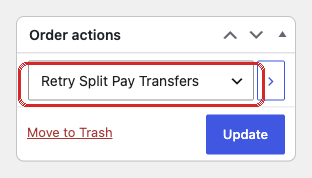
Read the new order note. It tells you which failed leg was retried, which proven success was preserved, or why Split Pay stopped without sending money — including when a site-level safety gate declined the retry.
FluentCart has no manual Retry Split Pay Transfers order action. Split Pay recovers FluentCart transfer legs automatically; see FluentCart transfer recovery.
When is the retry action visible?#
The WooCommerce action can appear when:
- The order is Processing, Completed, Cancelled, or Failed.
- The order has a resolvable Stripe charge from a supported platform gateway.
- The order is not still waiting for a held delayed transfer. Until a held order is Completed, the action is hidden so it can’t release the vendor payment early.
A Completed order that still shows Transfer pending — will release when this order is marked Completed has a release that stopped. Check the order notes for a Split Pay note naming the cause and fix it; Retry Split Pay Transfers then runs that release again.
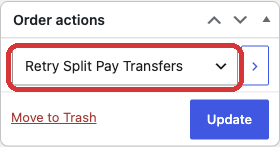
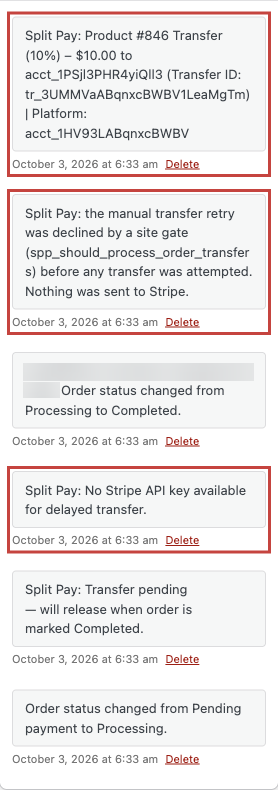
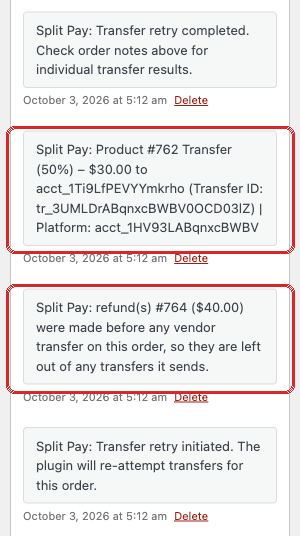
spp_should_process_order_transfers developer filter — sent nothing to Stripe. After the cause was fixed, Retry paid the vendor $10.00 once. A note from the test setup is blurred.Do not use Retry to recalculate a successful transfer after changing its settings. A changed payout plan stops for review rather than replacing money already sent.
What happens during a retry#
A retry is a new attempt against the order’s saved payout plan, not permission to send every leg again:
- The first genuine WooCommerce retry receives a fresh attempt identity, so Stripe can try a leg whose earlier request was clearly rejected.
- Every leg already proven successful is skipped without another payment.
- A clearly failed leg can be retried with the amount and recipient in the saved plan.
- A changed plan, incomplete transfer inventory, or conflicting evidence stops before a new transfer.
- While none of the order’s transfers has succeeded, a retry deducts every refund recorded on the order so far, and an order note names those refunds. See Refunds made before the first transfer.
- With Stripe-fee allocation PRO on, a retry after Split Pay couldn’t verify Stripe’s processing fee pays each recipient their full share without the fee deduction. See Known limitations.
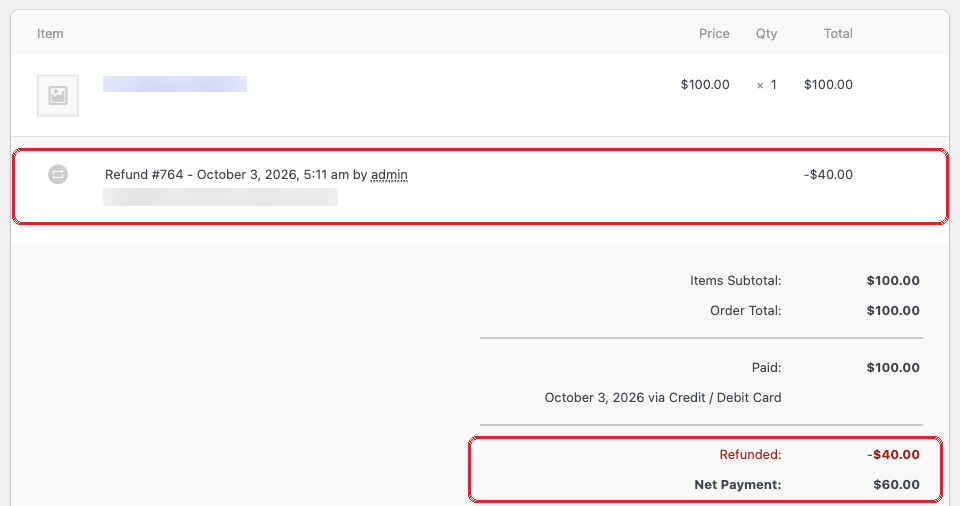
Not every older order can be retried automatically. If Split Pay cannot prove exactly what Stripe already received, stop and review the order and Stripe transfer IDs — do not keep clicking Retry or create a replacement transfer manually.
Orders stopped before any vendor was paid#
Retry Split Pay Transfers pays two kinds of WooCommerce order that were stopped before any vendor was paid:
- iDEAL, SEPA and other non-card payments — the Stripe charge ID starts with
py_, and the order note says Split Pay: Could not resolve charge ID for this order. - Delayed orders refunded in Stripe before release — for example with WooCommerce’s Refund via Stripe button. The order is Completed but still shows Transfer pending — will release when this order is marked Completed, and its order note says transfers were stopped because Stripe could not prove the charge is completely unrefunded. Retry releases the transfer less the earlier refund; see Refunds made before the first transfer for the limits.
If you already paid the vendor for one of these orders yourself in Stripe, don’t retry that order. Split Pay can’t see that payment and would pay the vendor again.
Common retry scenarios#
Delayed payment settlement
A bank payment was still pending when the order first ran. Once the charge is successful, your gateway normally marks the order paid and Split Pay resumes. Use the WooCommerce retry action only if the order note still shows an unresolved transfer. For a delayed order completed before its payment settled, Split Pay rechecks on its own — see Automatic retries.
Temporary API error
A clearly rejected transfer can receive a fresh attempt after the temporary condition is resolved. An unknown outcome must be reconciled first.
Insufficient platform balance
Do not assume a delayed transfer or automatic payout caused this message. Every Split Pay transfer remains tied to the order’s original charge, and Stripe can accept a source-bound transfer while those charge funds are pending. Compare the exact charge ID, amount and currency with the failed leg and every earlier transfer tied to that charge; correct the proven mismatch, then retry only the failed WooCommerce leg.
Refunded after a sequential split plan was saved
With sequential global product splits, Split Pay saves the order’s split plan before sending. If the order is refunded after that plan was saved and before any of its transfers succeeded, the next retry — automatic or Retry Split Pay Transfers — stops with the note Split Pay: transfers were stopped before sending because this order was refunded after its sequential split plan was saved. Pay its recipients by hand in Stripe. Every later retry stops the same way. Pay each recipient yourself in Stripe, and don’t retry the order afterwards. If Split Pay is still finishing the interrupted attempt that saved the plan, it sends that plan unchanged and handles the refund like a refund made after the transfer.
Technical details#
Split Pay verifies the saved order plan, local transfer records, and Stripe’s transfer inventory before authorizing a new WooCommerce attempt. The safe outcomes are:
- Already succeeded: preserve the transfer and send nothing.
- Definitively failed: retry that leg with a fresh attempt identity.
- Ambiguous or changed: send nothing and leave an order note requesting review.