
Global Transfers
Set a store-wide transfer baseline, then add only the product, sequence, fee, or field-routing exceptions your store needs.
What are global transfers?
A global transfer is the baseline transfer rule for your store. Once configured, eligible merchandise on an order sends the amount you choose to the connected Stripe account — no per-product setup required.
This is the simplest way to get started with Split Pay and is ideal for stores where every sale should be split the same way.
Example: A store sets a 20% global transfer. An order with $50 and $120 of eligible merchandise transfers $34 to the connected account — 20% of the $170 eligible merchandise total.
How global transfers work
By default, a product-level or variation-level rule takes priority and products without their own rule use the global fallback. The optional WooCommerce sequential mode is the explicit exception: fixed product transfers run first, then global rows use what remains.
How to configure
Follow these steps to set up a global transfer:
In your WordPress admin, navigate to Split Pay → Global Transfer Settings.
Choose the recipient from the Connected Stripe account list.
Select the Transfer Type:
- Percentage — Enter a value from 0 to 100. The percentage uses the order’s eligible global merchandise total.
- Fixed Amount PRO — Enter one amount in the order currency for this global row. It is applied once per eligible order, not once per product or unit.
Enter the Transfer Value — the percentage or fixed amount you want to transfer.
Click Save Changes.
That’s it. Each eligible order then uses the configured global rule.
Transferring to multiple accounts PRO
The free version of Split Pay supports transferring to one connected account at the global level. With the Pro version, you can add multiple connected accounts, each with their own transfer type and value.
For example, you could send 15% to Vendor A and 10% to Vendor B for each eligible product sale — all configured at the global level.
To add another recipient, click Add new account below the existing rows on Split Pay → Global Transfer Settings, choose the connected account, set its transfer type and value, and click Save Changes.
Important: Keep the intended total across all connected accounts within the captured payment. Split Pay enforces that ceiling before sending: if a later transfer would exceed it, that transfer is reduced to the remaining amount; after the payment is fully allocated, another transfer is stopped locally.
Fixed amount behavior
A global fixed amount is applied once for that global row on an eligible order; product count and quantity do not multiply it. If the row asks for more merchandise money than remains available to it, Split Pay does not send that row. Product- and variation-level fixed amounts use different per-unit behavior; see Product-level Transfers.
Fixed amount transfers are a PRO feature. The free version supports percentage-based transfers only.
Sequential global product splits PRO
WooCommerce only. Gross calculation is the default. On Split Pay → Advanced, under Advanced transfer options, turn on Calculate WooCommerce global product splits one after another only when each global row should use the merchandise amount left by the rows before it. Then click Save Changes.

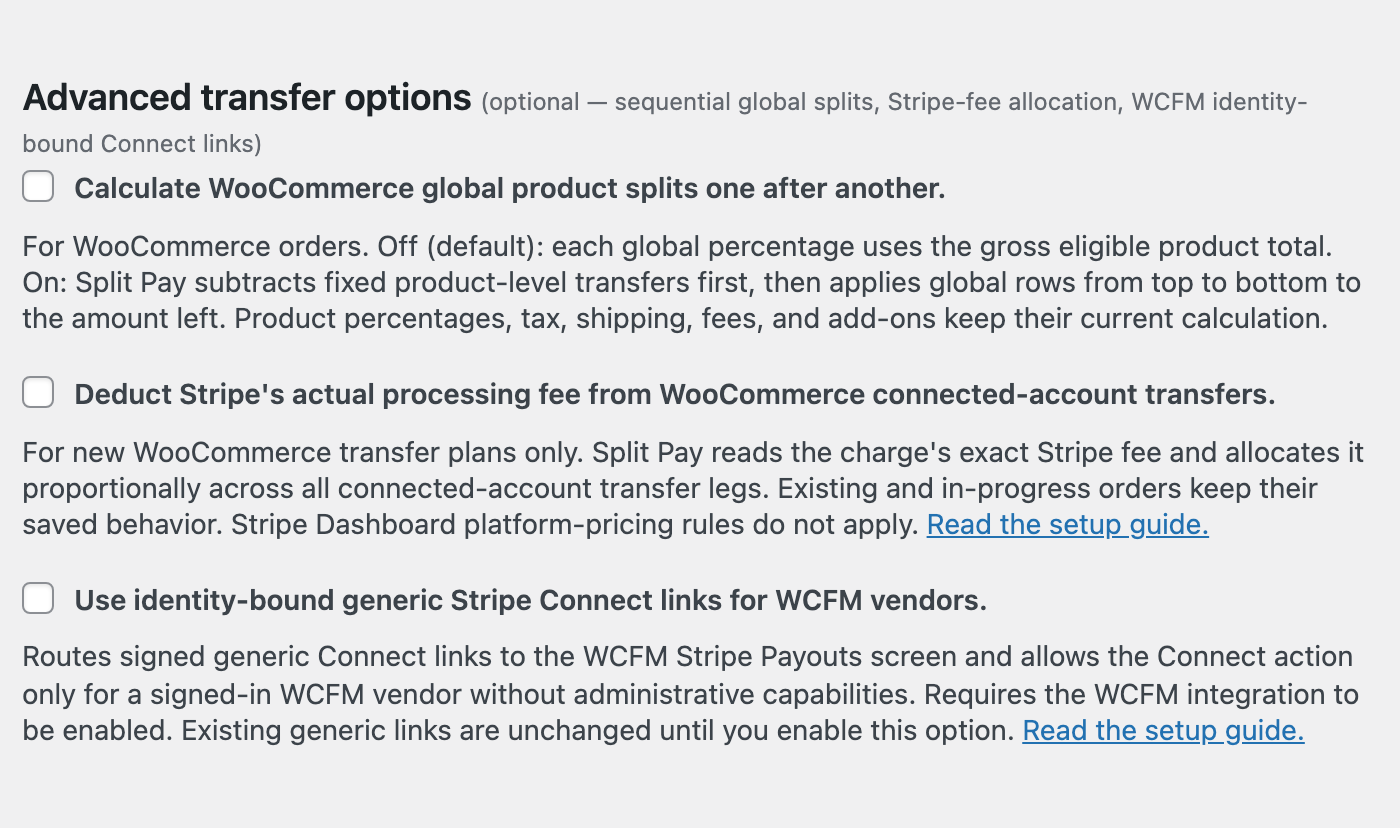
- Fixed product-level transfers reduce the eligible merchandise first.
- Global rows then use the remaining amount from top to bottom, so row order matters.
- Product percentage, tax, shipping, order-fee, and add-on calculations do not change.
- Existing and in-progress orders keep the calculation mode and plan already saved for them.
Example: A $100 merchandise total has a $40 fixed product-level transfer. That leaves $60. A following 10% global row transfers $6, leaving $54 for the next global row.
This setting changes product-split ordering, not Stripe-fee handling. See Stripe-fee allocation for the separate fee option.
If an order is refunded after its sequential split plan is saved and before any of its transfers succeed, a retry of that order stops without sending, and you pay its recipients by hand in Stripe. See Refunded after a sequential split plan was saved.
Route WooCommerce order fees
Use the optional Fee routing card on Split Pay → Advanced to send part or all of a positive WooCommerce order-level fee — such as a fee named Handling — to one connected account.
- Enter the fee name shown on the WooCommerce order. Capitalization and surrounding spaces are ignored.
- Choose the connected account and the percentage to transfer. A blank percentage defaults to 100%.
- Click the page’s main Save Changes button.
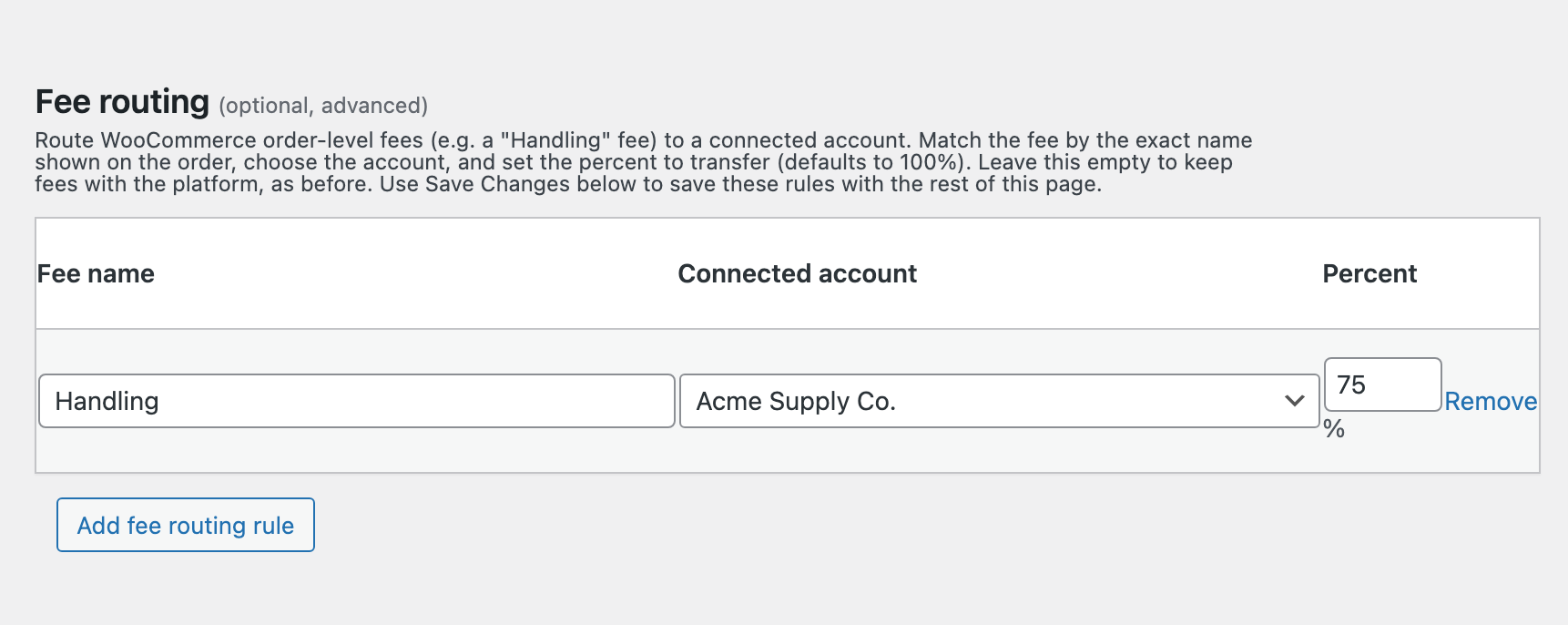
Unmatched fees stay with your platform. Zero and negative fees are never transferred, fee tax is excluded, and the first saved rule for a duplicated fee name wins.
Route by a customer’s field value PRO
Field-value routing changes the first configured product recipient when a WooCommerce line-item field or checkout/order field matches a saved rule. It does not change the split percentage or fixed amount.
- On Split Pay → Advanced, under Field-value routing, check Enable field-value routing.
- In Field identifier, enter the field’s displayed label or raw metadata key.
- Map each field value to the connected account that should receive the product transfer, then click Save Changes.
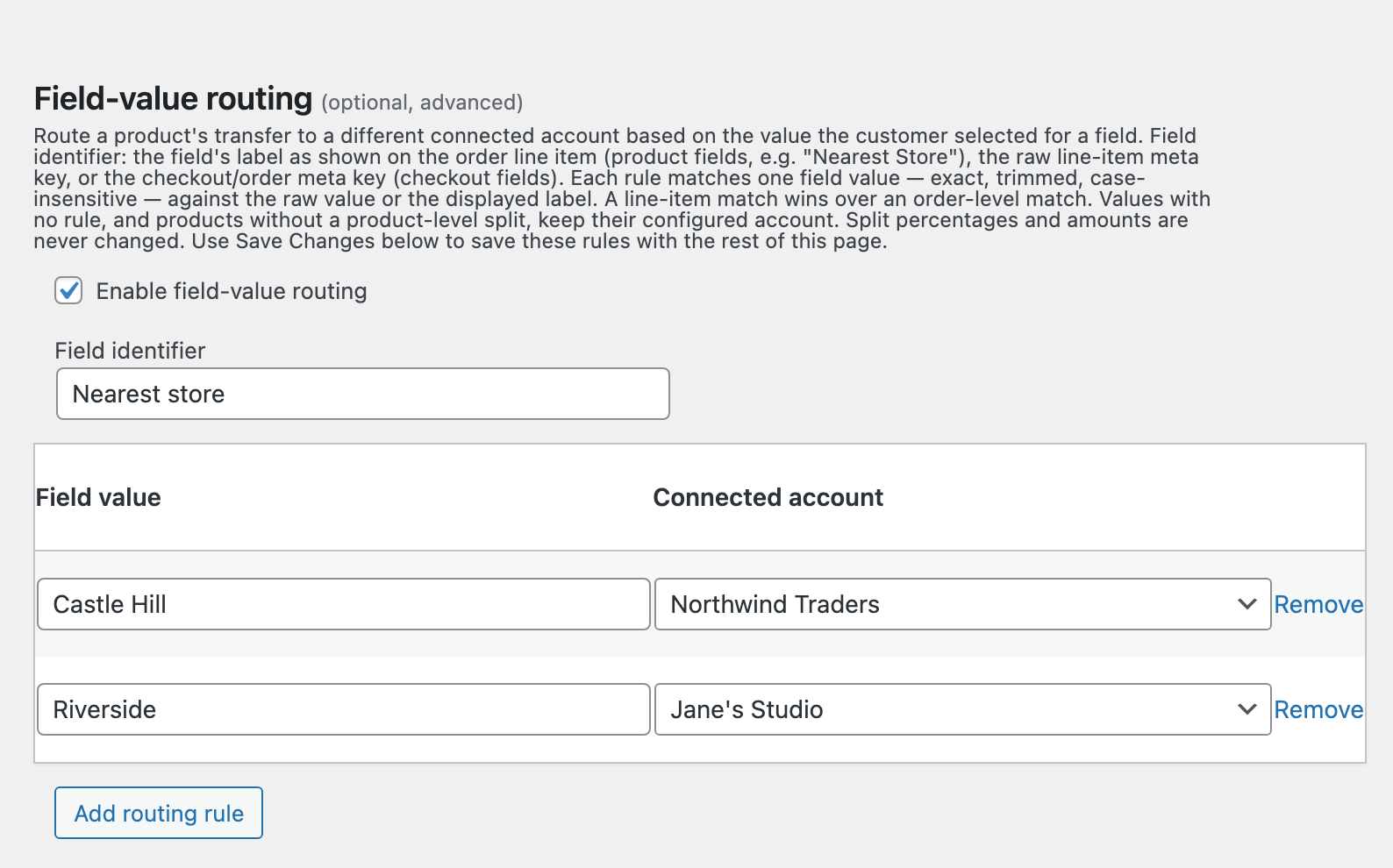
Matching is trimmed and case-insensitive. A matching line-item field wins over an order-level field. If nothing matches, Split Pay leaves the existing product routing unchanged; it never creates a product split where none exists.
When to use global transfers
Global transfers are the right choice when:
- You have a single vendor or partner who receives a cut of every sale.
- Your entire catalog uses the same commission structure.
- You want a quick setup without configuring individual products.
- You plan to override specific products later but need a sensible default in place.
If you need different transfer amounts for specific products, see Product-level Transfers.