
Product-level Transfers PRO
Override global transfer settings for individual products, allowing different commission rates or recipients on a per-product basis.
What are product-level transfers?
Product-level transfers let you override the global transfer setting for a specific product. Instead of every product using the same transfer rule, you can assign a unique transfer amount, transfer type, or even a different connected Stripe account to individual products.
Products without a product-level transfer configured will continue to use the global transfer setting. You only need to set product-level transfers where the global default doesn't apply.
Example: A store has a 10% global transfer to Vendor A. However, one premium product is sourced from Vendor B and requires a 25% commission. By setting a 25% product-level transfer on that product (pointing to Vendor B's Stripe account), only that product's sales go to Vendor B at 25%. All other products continue to transfer 10% to Vendor A.
How it fits the override hierarchy
Product-level transfers sit in the middle of the override hierarchy: they override the global transfer for that product, a variation-level rule (if set) overrides them, and products without one fall back to the global transfer. The optional WooCommerce sequential global mode is the exception for fixed product transfers.
How to configure
To set a product-level transfer on a specific product:
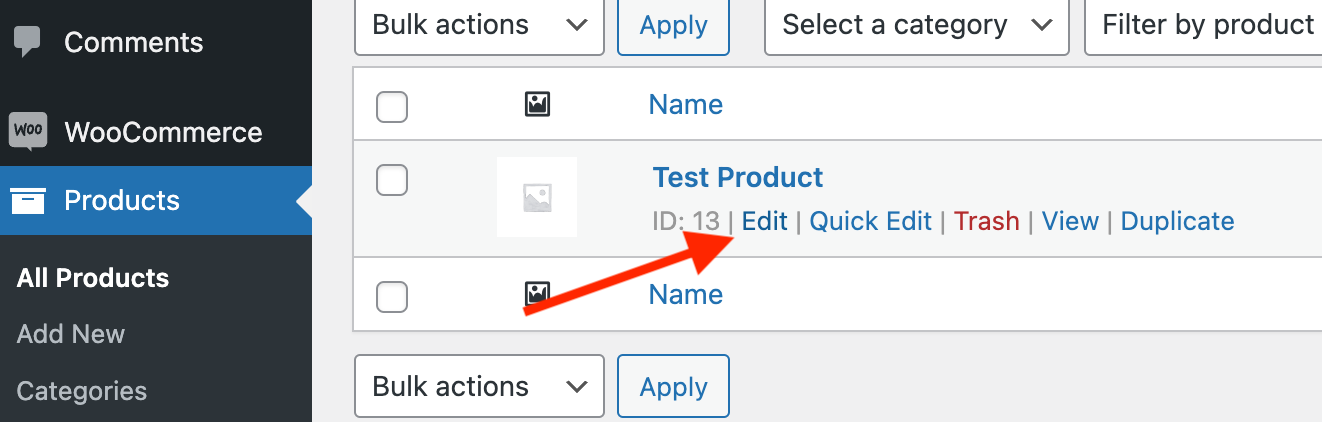
In your WordPress admin, go to Products and Edit the product you want to configure.
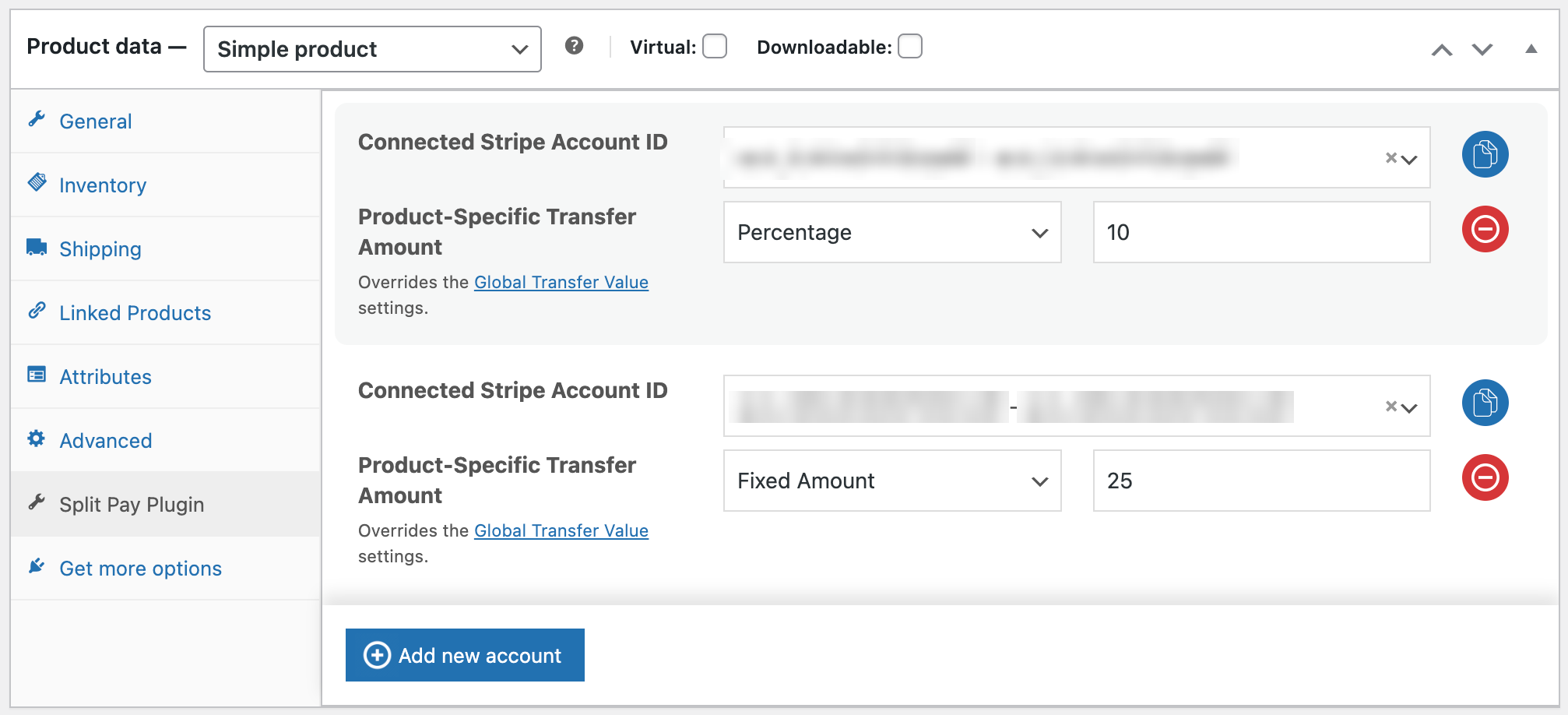
Scroll down to the Product Data panel and click the Split Pay Plugin tab.
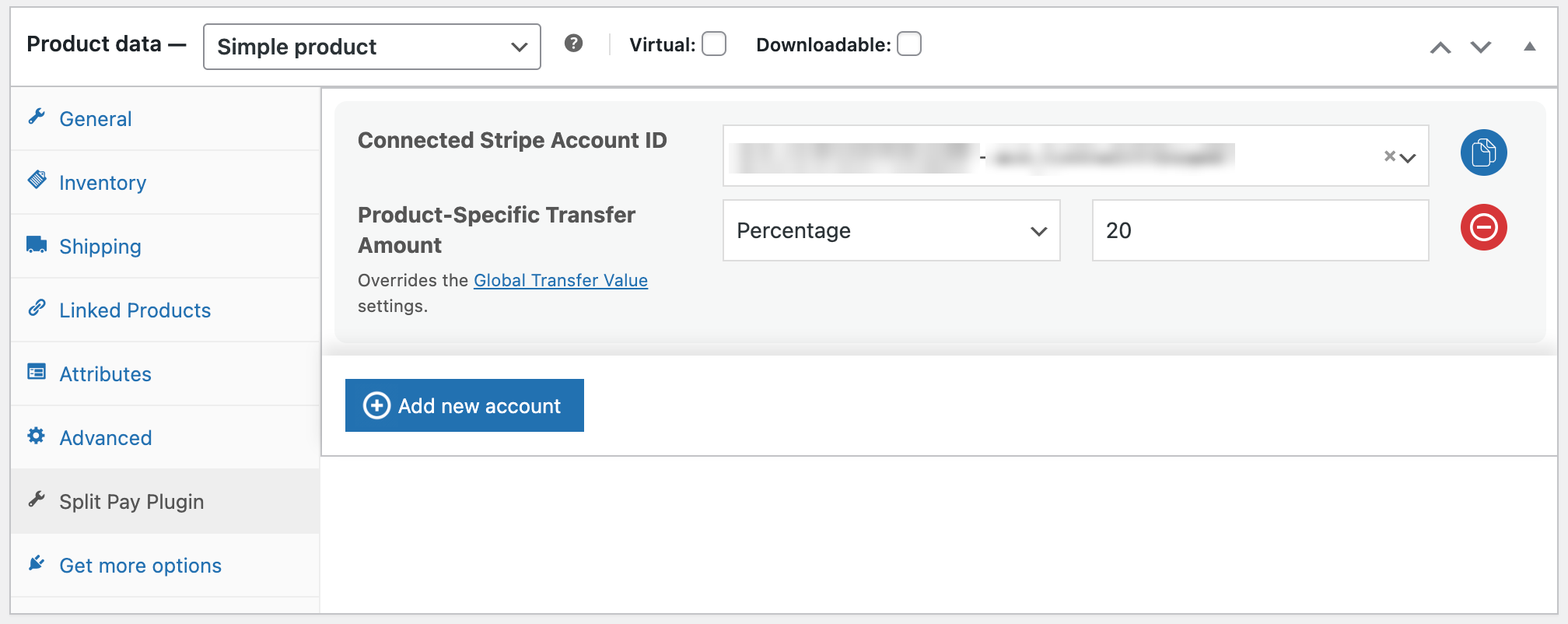
Choose the recipient from the Connected Stripe Account ID list. This can be the same as or different from the global account.
Select the Transfer Type:
- Percentage — Enter a value from 0 to 100.
- Fixed Amount — Enter a specific amount in the order currency to transfer per unit sold.
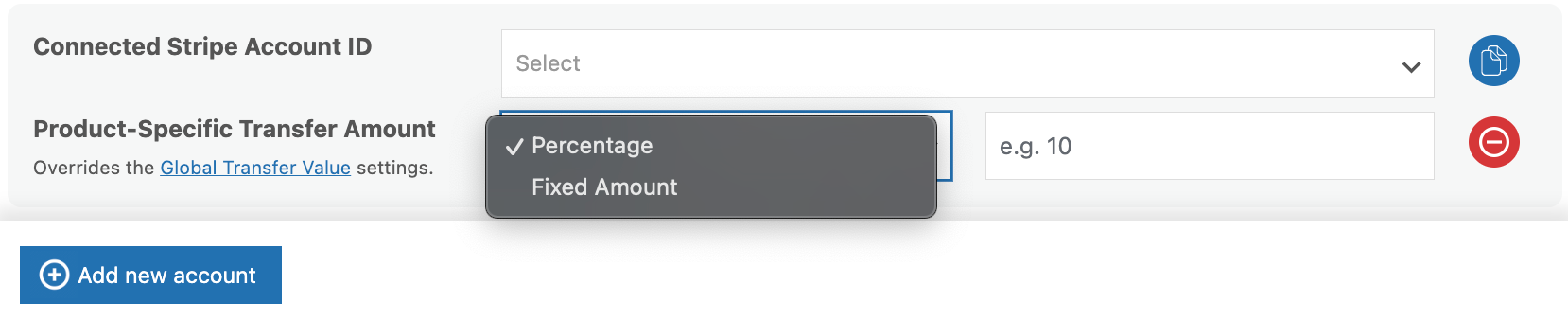
Enter the Transfer Value.
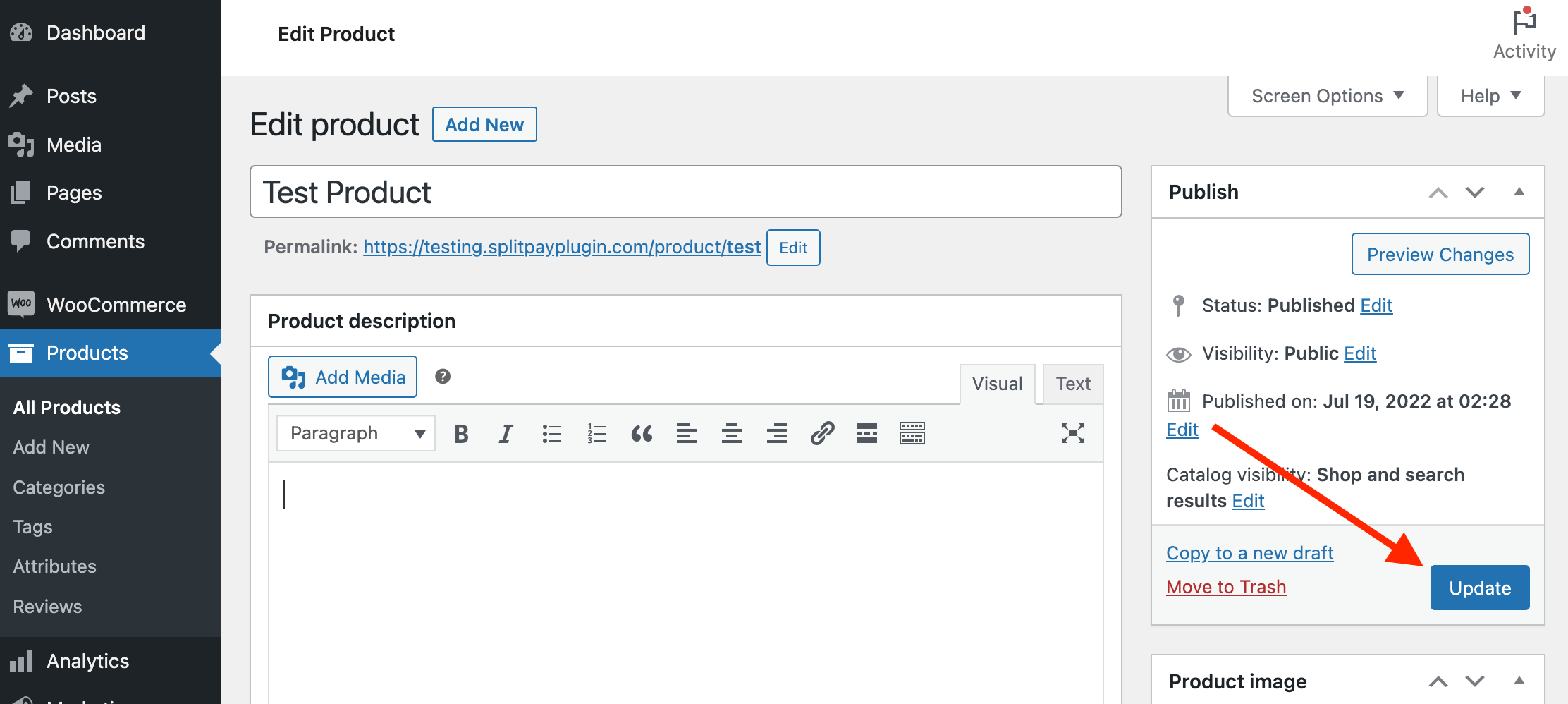
Click Update to save the product.
You do not need to set a product-level transfer on every product. Any product without a product-level setting will automatically use the global transfer. Only configure products that need a different amount, type, or recipient.
WooCommerce Subscriptions products
With WooCommerce Subscriptions active, simple subscription products show the same Split Pay Plugin tab. Configure it with the steps above. Split Pay applies the product’s rule to that product’s line on each paid subscription order, including renewals. Simple subscription products don’t show the warning that begins The Split Pay Plugin only works with some products out of the box.
Using different connected accounts
One of the most powerful aspects of product-level transfers is the ability to route payments to different vendors on a per-product basis. Each product can specify its own connected Stripe account, so different products can pay different people.
This is ideal for marketplace-style stores where each product is supplied by a different vendor.
One product can also pay several connected accounts. On the product’s Split Pay Plugin tab, click Add new account to add another recipient row, set that row’s transfer type and value, and click Update.
Fixed amount behavior
A product- or variation-level fixed amount applies per unit, so quantity multiplies it. WooCommerce caps the result at that order line’s eligible amount. FluentCart does not apply a per-line cap or preflight the complete plan against the source charge; if several legs over-allocate that charge, Stripe can reject a later leg after earlier legs have succeeded. Global fixed rows are different: each global fixed amount applies once per eligible order. See Global Transfers.
Practical scenarios
Scenario 1: different commission rates
Your store sells both in-house products and third-party products. In-house products use the 10% global transfer, while third-party products need a 30% commission to the supplier. Set a 30% product-level transfer on each third-party product.
Scenario 2: different vendors
Your store lists products from Vendor A and Vendor B. The global transfer sends 20% to Vendor A. For Vendor B's products, set a product-level transfer with Vendor B's Stripe account ID and the appropriate percentage.
Scenario 3: fixed fee per product
A photographer sells prints at various prices but pays a flat $3 production fee per print to their print partner. A $3 fixed product-level transfer handles this when every eligible line has at least $3 per unit available.
Removing a product-level transfer
To remove a product-level transfer and revert to the global setting:
- Edit the product and go to the Split Pay Plugin tab.
- Use the Remove account button for the product recipient row.
- Click Update.
The product will immediately fall back to using the global transfer setting.
Bulk editing: If you need to set product-level transfers for many products at once, consider using the Bulk Editor to save time.