
Recovering Lost Product Settings
Split Pay can rebuild one missing WooCommerce product or variation recipient rule when the transfer log contains one unambiguous recovery source.
Overview#
Split Pay has two recovery tools backed by the same fail-closed rule. A candidate must be a WooCommerce order with exactly one order line and exactly one positive, explicit product or variation transfer row in bsd_scsp_transfer_log (transfer type 8, 9, 10, or 11). Recovery restores that row’s connected account and percentage or fixed value; it does not reconstruct shipping rules.
- One-time recovery migration — runs once, automatically, when Split Pay is updated from a version older than 3.7.4, and checks up to 5,000 distinct logged WooCommerce order IDs, newest first. See One-time recovery migration below.
- Per-product Recover button — perpetual, always available on each WooCommerce product’s Split Pay tab. Use any time to rebuild a single product’s configuration. See Per-product Recover button below.
Recovery never overwrites existing configuration. Both the migration and the per-product button are additive by default — if a product already has a vendor saved, recovery is skipped for that product. The per-product button has an explicit Force overwrite checkbox if you want to override an existing-but-wrong configuration.
When you’d need this#
Recovery is useful any time a product’s configuration is gone but its earlier orders were split:
- Your store ran a Split Pay version older than 3.7.4, which could silently erase product settings on some saves (the most common case); see One-time recovery migration.
- A bulk update went wrong and overwrote a category of products with empty values.
- A manual database edit (or a database restore from a stale snapshot) wiped the
_bsd_spscwt_product_connected_accountmeta on some products. - A third-party plugin doing its own product save erased Split Pay’s meta on the products it touched.
- You restored from a staging snapshot where the product configuration didn’t match production.
- A future bug (in any plugin) silently empties one of Split Pay’s product meta fields.
One-time recovery migration#
When Split Pay is updated from a version older than 3.7.4, it runs migration-374.php once, automatically. The migration:
- Checks up to 5,000 distinct WooCommerce order IDs from
bsd_scsp_transfer_log, newest first. - Keeps only orders with exactly one order line and exactly one positive explicit product or variation transfer row.
- For each matching product or variation whose connected-account setting is empty, applies the most recent candidate’s account and percentage or fixed value.
- Writes a forensic snapshot of the pre-recovery state to
_bsd_spscwt_pre_374_state, and a recovery marker with the source order ID and charge date to_bsd_spscwt_recovered_in_374. - Skips products that already have a vendor configured — recovery never overwrites existing data.
- Skips every order with more than one line or more than one qualifying transfer row, even if its destinations or values happen to match.
Dashboard summary notice#
After the migration runs, Split Pay shows a one-time, dismissible admin notice on every WordPress admin page until you dismiss it. The notice tells you exactly what happened:
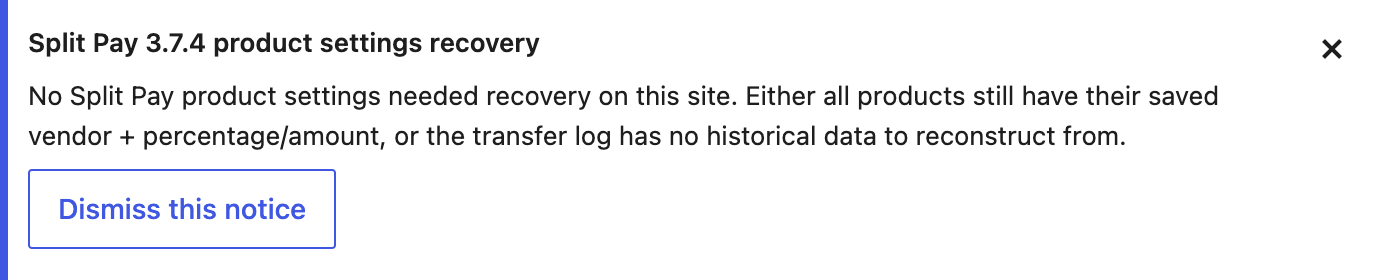
?spp_show_374_recovery=1 on the Split Pay settings page.The notice reports whether nothing needed recovery, which products were rebuilt, and whether any logged orders were too ambiguous for the strict one-line/one-transfer rule. Review skipped products manually; the migration does not guess.
Re-surfacing the notice after dismissal#
If you dismissed the notice and want to look at the recovery summary again later, append ?spp_show_374_recovery=1 to the Split Pay settings page URL:
/wp-admin/admin.php?page=bsd-split-pay-stripe-connect-woo-settings&spp_show_374_recovery=1The notice re-renders from the persisted bsd_split_pay_374_recovery_stats option (which is kept around even after dismissal for forensic reference).
Forensic meta on recovered products#
Each recovered product gets two meta keys you can inspect directly via WP-CLI or phpMyAdmin if you want to audit or revert:
| Meta key | What it stores |
|---|---|
_bsd_spscwt_pre_374_state |
The product’s pre-recovery recipient, type, amount, percentage, and shipping arrays plus snapshot_at. A manual button recovery also adds source=manual_per_product_button and its force value; the automatic migration does not add those two fields. |
_bsd_spscwt_recovered_in_374 |
The recovery audit trail: recovered_at, source_order_id, source_charge_date, vendor_acct, entered_value, and integer/string transfer types. A manual recovery also adds source and force; the automatic migration does not. |
Inspect either with WP-CLI:
wp post meta get <product_id> _bsd_spscwt_recovered_in_374
wp post meta get <product_id> _bsd_spscwt_pre_374_state
Per-product Recover button#
For a product that lost its rule after the one-time migration ran, the WooCommerce Split Pay product tab includes a perpetual recovery panel. It uses the same one-line/one-transfer requirement and restores only an eligible account plus percentage or fixed value.
Where to find it#
- Open the product in WooCommerce → Products and click Edit.
- Scroll to the Product data meta box.
- Click the Split Pay Plugin tab in the left sidebar of the product data box.
- The Recover Split Pay settings from transfer log panel renders at the very top of the tab, above the regular vendor / percentage / shipping rows.
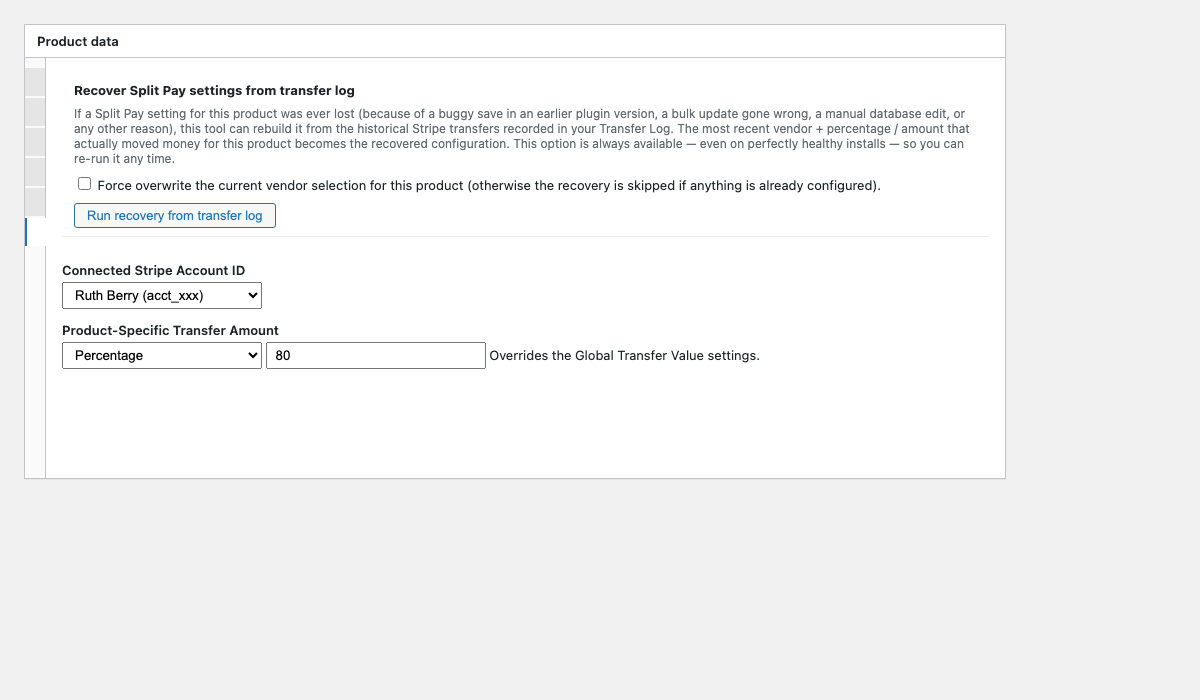
WooCommerce-only. The one-time migration and per-product Recover button both rebuild WooCommerce product rules from WooCommerce transfer-log rows. They do not recover FluentCart product rules, and resetting connected accounts does not re-run recovery. Re-enter a missing FluentCart rule manually.
How to run it#
- If the product currently has no Split Pay configuration, click Run recovery from transfer log. The button restores the most recent eligible candidate, if one exists.
- If the product currently does have a saved vendor (and you still want recovery to apply — for example, to overwrite an incorrect manual entry with what was last actually transferred), tick the Force overwrite the current vendor selection for this product checkbox before clicking. Without that checkbox, the button reports “This product already has a vendor configured — skipping” and exits without changes.
- Reload the product edit page after a successful recovery to see the restored values populated in the regular vendor / percentage / amount rows.
What the button reports#
| Outcome | Result text | What it means |
|---|---|---|
| Recovered | “Recovered. Vendor acct_xxx with N (percentage / amount) restored from your transfer log. Reload to see it on the form.” |
A historical transfer was found for this product and its vendor + value have been written back to the post meta. |
| Skipped (already configured) | “This product already has a vendor configured — skipping (check Force overwrite to override).” | The product’s connected-account meta is non-empty. Use Force overwrite if you actually want to replace it. |
| Nothing to recover | “No historical Stripe transfer found for this product in the log. Nothing to recover from.” | No logged order for this product satisfied the strict requirement of one WooCommerce line and one positive explicit product/variation transfer row. Re-enter the configuration manually. |
| Permission denied | “Permission denied.” (HTTP 403) | Current user lacks edit_post on this product. Sign in as a user who can edit it. |
| Recovery failed | “Recovery failed.” or “Recovery request failed (network or server error).” | An unexpected server / WordPress error occurred. Check the WP debug log, where Split Pay writes the details. |
“Last recovery on this product” status row#
If the product has been recovered before (either by the one-time migration or by a previous click of the per-product button), the panel renders an extra status row above the action button summarising the prior recovery: “Recovered on YYYY-MM-DD HH:MM:SS — vendor acct_xxx, value 80 (percentage). Sourced from Stripe transfer dated YYYY-MM-DD.”
This is the same data that lives in the _bsd_spscwt_recovered_in_374 meta. It’s informational — clicking Run recovery from transfer log again will re-run the scan from scratch, not just re-display the same row.
When recovery can’t help#
Recovery uses only the narrow evidence recorded in the transfer log. It returns “Nothing to recover from” when no candidate satisfies every required check.
- Brand-new product — never sold yet, so no transfer log entries exist. Configure the vendor / percentage / amount manually on the form.
- Any multi-line or multi-transfer source order — recovery requires exactly one WooCommerce order line and one qualifying product/variation transfer row. Review the Transfers tab and re-enter the configuration manually.
- Legacy or non-product transfer rows — rows without a positive entered value and explicit product/variation type 8–11 are not enough evidence to recreate future routing.
- Wiped transfer log — if the
bsd_scsp_transfer_logtable was removed, including through Split Pay’s destructive uninstall option, the recovery source is gone. - FluentCart-only history — both recovery tools require WooCommerce transfer-log rows and WooCommerce order/product mapping, so they cannot rebuild FluentCart product rules.