
Testing
Step-by-step guide to testing Split Pay transfers in Stripe test mode. Use test card numbers, place orders, and verify transfers appear in your Stripe Dashboard.
Overview#
Before going live with Split Pay, run test transactions to verify that transfers are created correctly. Stripe's test mode simulates payments without moving real money, so you can confirm your configuration end-to-end.
Always test in Stripe test mode before enabling live mode. Test mode transactions use separate API keys and do not affect your real Stripe balance.
Step-by-step testing guide#
Step 1: enable Stripe test mode#
Test mode is enabled on your Stripe gateway, not on Split Pay. The location depends on which adapter you’re running:
- Official WooCommerce Stripe Payment Gateway: WooCommerce → Settings → Payments → Stripe.
- Payment Plugins for Stripe WooCommerce (
woo-stripe-payment): WooCommerce → Settings → Payments → click Manage on any of the Stripe-prefixed payment methods (or open Payment Plugins → Stripe Settings on newer versions) and toggle the gateway-wide test/live mode switch. - FluentCart built-in Stripe module: FluentCart → Settings → Payment Methods → Stripe, then switch the mode toggle from Live to Test.
Open the relevant settings page above and switch to test mode.
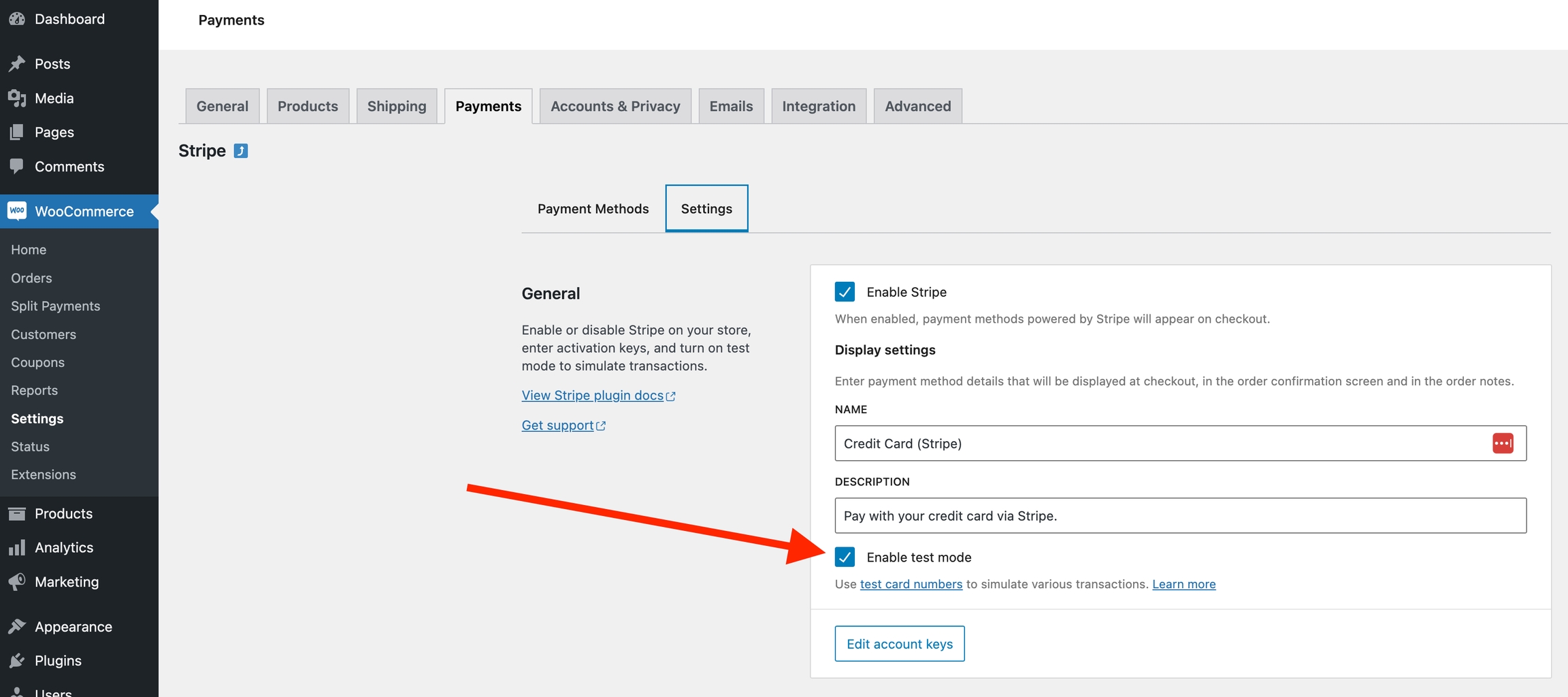
Enter the gateway’s Stripe Test credentials. Split Pay accepts a Test secret key beginning sk_test_ or rk_test_ in its masked Test field; a restricted key must pass Split Pay’s current platform, connected-account, charge, transfer, and reversal checks.
Save your changes.
Find your test API keys in the Stripe Dashboard under Developers → API keys. Make sure "Test mode" is toggled on in the dashboard.
Step 2: configure Split Pay settings#
Open Split Pay → Connect Status and confirm the intended recipient is ready for Test orders. Then configure a non-zero global rule or, with PRO, a product-level rule. The same exact connected-account ID can be valid in Test and Live; use the mode shown by Connect Status rather than guessing from the ID.
Step 3: place a test order#
Add a product to your cart and proceed to checkout. Use Stripe's test card number:
| Field | Value |
|---|---|
| Card number | 4242 4242 4242 4242 |
| Expiry date | Any future date (e.g., 12/34) |
| CVC | Any 3 digits (e.g., 123) |
| ZIP | Any valid ZIP code (e.g., 12345) |
Complete the checkout. The order should process successfully.
Step 4: verify the Payment in Stripe#
Log in to your Stripe Dashboard and make sure Test mode is enabled (toggle in the top right).
Navigate to Payments and click View test data. The test payment should appear with the order total.

Step 5: check the Connected account#
In the Stripe Dashboard, go to Connect → Accounts. Click on the connected account that should have received the transfer.

Scroll to the Money Movement section and click Transfers. The Stripe transfer should match Split Pay’s recorded final amount for that order, after any enabled fee allocation or debt recovery.
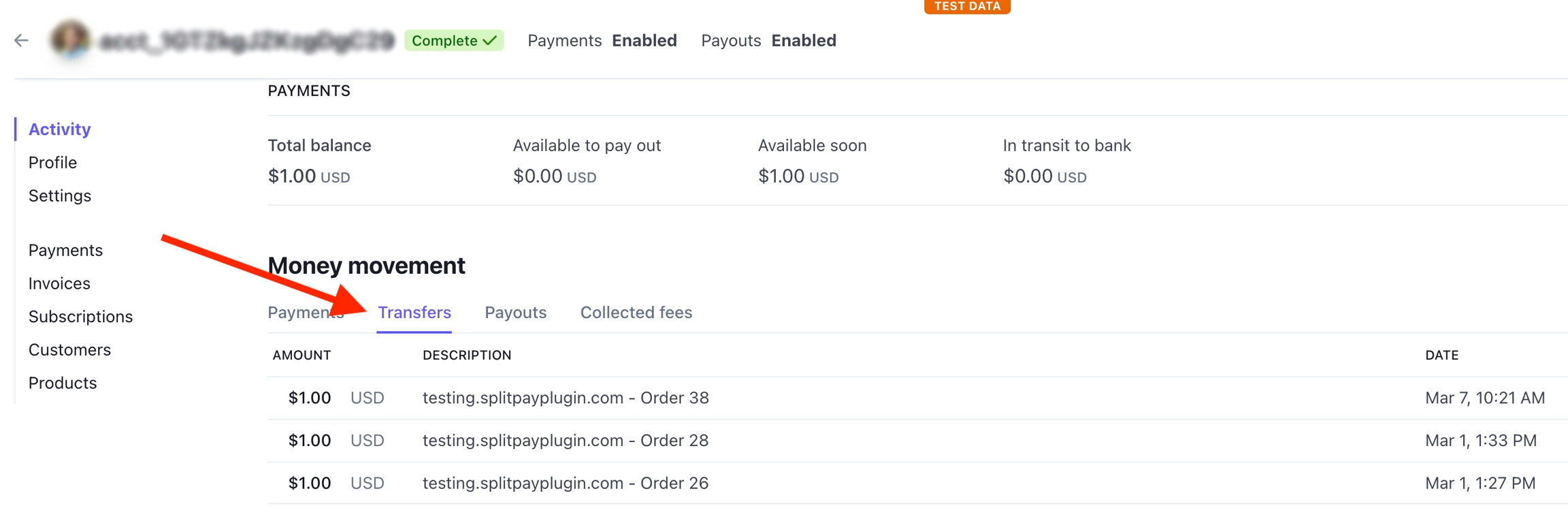
If the payment, saved Split Pay result, and matching Stripe Test transfer agree, the Test path is working. Before accepting Live orders, separately configure the Live gateway and Split Pay key, refresh Connect Status, and verify every Live recipient. Test success does not configure Live mode automatically.
Additional test card numbers#
Stripe provides several test card numbers for different scenarios:
| Card Number | Scenario |
|---|---|
4242 4242 4242 4242 |
Successful payment (Visa) |
5555 5555 5555 4444 |
Successful payment (Mastercard) |
4000 0000 0000 0002 |
Card declined |
4000 0000 0000 9995 |
Insufficient funds |
4000 0025 0000 3155 |
Requires 3D Secure authentication |
For a full list, see Stripe's testing documentation.
Common testing issues#
- Payment succeeds but no transfer appears — Check that your Split Pay settings are configured, the connected account ID is a test mode account, and the transfer settings are saved on the product or globally.
- "No such connected account" error — Open Connect Status and verify the exact recipient ID, platform account, and order mode. The same ID can be valid in both modes, while different IDs need the applicable site-scoped identity mapping.
- Transfer amount is $0 — The transfer percentage or amount may be set to 0, or the product doesn't match any configured transfer rules.
- Order stuck on "pending" — Stripe test mode may not be enabled, or your test API keys are incorrect.
If you hit issues during testing, see the Troubleshooting guide for detailed diagnostics.