
Delay transfers until order complete PRO
Hold Stripe transfers until the WooCommerce order status reaches Completed, so vendor payouts only fire after you confirm fulfillment, shipment, or service delivery.
WooCommerce PRO feature. Delayed transfers apply only to WooCommerce orders. FluentCart transfers are not controlled by this setting.
What this feature does#
By default, Split Pay creates WooCommerce transfers after payment succeeds. This is useful for digital goods or any order fulfilled at checkout.
When Delay transfers until order is marked Completed (WooCommerce) is enabled, Split Pay records the hold on the order instead. It creates the configured transfers only after that WooCommerce order reaches Completed. Release follows WooCommerce’s built-in Completed status even if your store renames it; a separate custom order status doesn’t release transfers. This setting changes only the transfer timing; the Stripe gateway still controls the customer-payment flow.
Pending charge funds are supported. Split Pay ties every transfer to the original charge. Stripe can accept that transfer while the charge funds are pending and wait for those funds to become available. If the charge has already settled and its funds are no longer in the platform balance, the later transfer can still fail.
Keep the order in the same Test/Live mode and platform account from payment through the Completed release. Named gateway adapters read their current mode when the release runs; an unmatched universal adapter can use the only available platform key, whose prefix determines effective mode. Split Pay stops if it cannot verify the original charge in the selected account.
When to use it#
This setting is for fulfillment-gated payouts. Hold the vendor's payout until the seller confirms the goods shipped or the service was delivered. Common scenarios:
- Physical goods marketplaces — release the vendor's cut only after the order ships and you mark it Completed.
- Made-to-order or print-on-demand stores — hold vendor payouts until production is finished and the order is fulfilled.
- Service-based bookings — wait until the appointment, lesson, or job is delivered before paying out the service provider.
- Stores with high dispute or chargeback risk — keep the vendor payout from reaching the connected account until the order is closed out.
Default state#
The setting is OFF by default. Transfers continue to run after payment unless you explicitly enable fulfillment-gated payouts.
How to enable#
In your WordPress admin, navigate to Split Pay → Global Transfer Settings.
Find the delayed-transfer setting. See Global Transfers for the other global options.
Check the box labeled “Delay transfers until order is marked Completed (WooCommerce).”
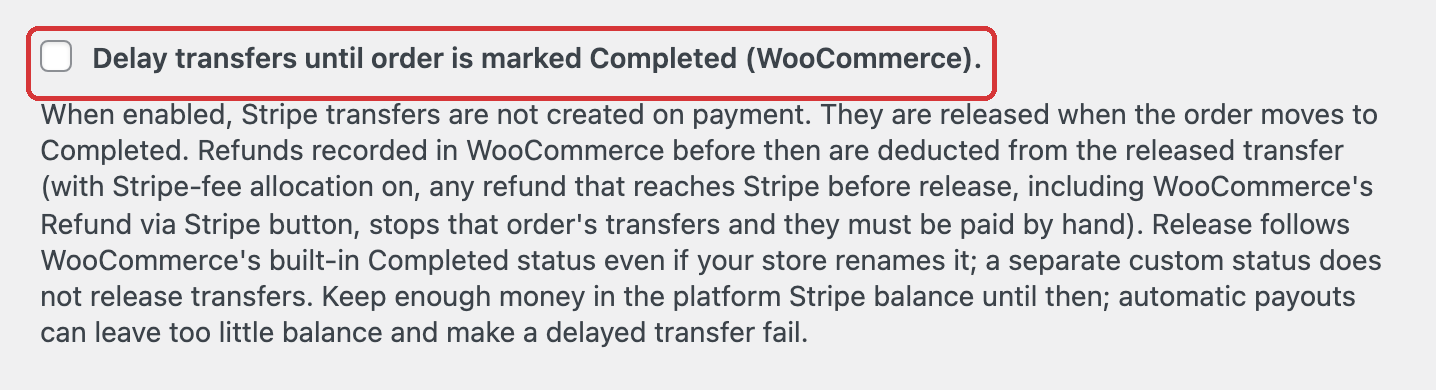
Click Save Changes.
The setting applies to every WooCommerce order on the store, whether its transfers come from global, product-level, or variation-level rules.
How to verify it's working#
Verify the setting with a WooCommerce order in Stripe test mode:
Place a WooCommerce test order and leave it in Processing.
Open the order. Split Pay shows Transfer pending — will release when this order is marked Completed and adds a matching order note. No Stripe transfer exists yet, so do not expect a pending row on the Transfers tab.
Change the order status to Completed and save.
Review the order notes and Transfers tab. A successful release has a Stripe transfer ID. If a leg fails, the order notes show the exact reason.
If no transfer is created, first confirm that the order reached Completed. Then review the exact order note before using Retry Split Pay Transfers. For an amount or balance error, check the original charge, settlement currency, requested amount, and any transfers already tied to that charge.
Behavior on refund before completion#
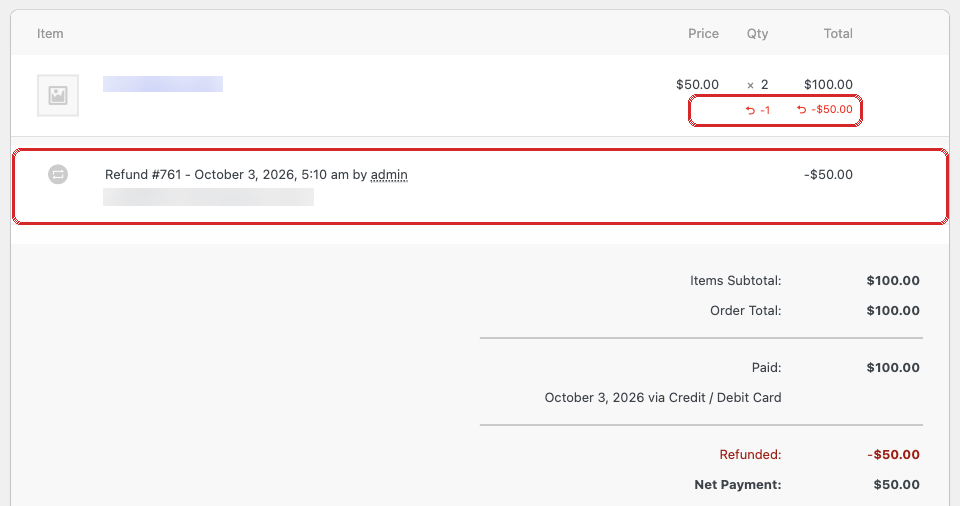
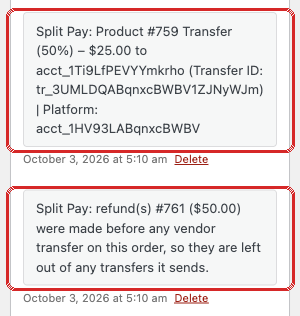
A refund you record on the WooCommerce order while its transfer is held is deducted from the transfer when the order is marked Completed. No transfer exists yet, so there is nothing to reverse; instead Split Pay leaves the refunded items, shipping, tax or amount out of the released transfer and adds an order note naming the refunds, for example Split Pay: refund(s) #123 ($20.00) were made before any vendor transfer on this order, so they are left out of any transfers it sends.
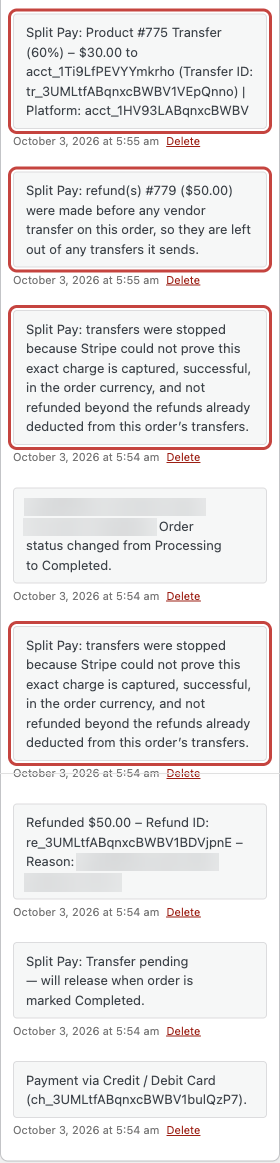
- With Stripe-fee allocation on, any refund that reaches Stripe before release — including one made with WooCommerce’s Refund via Stripe button — stops that order’s transfers. Pay its recipients by hand in Stripe. Retry Split Pay Transfers stops the same way while Stripe-fee allocation is on; with it turned off, Retry releases the transfer less the refund, without a fee deduction.
- If Stripe shows a refund on the charge that isn’t recorded on the WooCommerce order, or the charge is fully refunded, Split Pay stops the release and adds an order note.
If the order reached Completed and transfers were already created, normal refund handling applies. See Refunds made before the first transfer for how later refunds on a held order are measured.
Interaction with other features#
- Shipping fee transfers follow the same gating — they fire when the order is Completed, not on payment.
- Retry Failed Transfers can retry a clearly failed leg after you fix the cause. Split Pay preserves legs already proven successful. The action is hidden while a held order is not yet Completed. If a Completed order still shows Transfer pending — will release when this order is marked Completed, the release stopped: check the order notes for a Split Pay note naming the cause, fix it, then choose Retry Split Pay Transfers to run the release again.
- Bank-debit payments — if the order is marked Completed before an ACH, SEPA or Bacs payment has settled, the order shows Transfer deferred — the charge has not settled yet and Split Pay checks again every 6 hours, up to 14 times.
- Override hierarchy (global → product-level → variation) is unaffected. The delay setting only changes when transfers fire, not which rules apply.
- Multiple connected accounts on one order are held until the same Completed transition, then each configured leg is attempted.
When not to use it#
Leave this setting OFF if:
- You sell digital goods or downloads where fulfillment is instant — there's nothing to wait for.
- Your vendors expect to be paid immediately on sale (e.g., affiliate-style splits with no fulfillment dependency).
- You don't reliably mark orders as Completed (e.g., you leave everything in Processing) — transfers would never fire.
How the delayed money flow works#
Delayed transfers use Stripe’s separate charges and transfers model: the customer charge belongs to your platform, and Split Pay creates the connected-account transfer later.
- The gate is always the WooCommerce order status reaching Completed. You don’t pick an arbitrary point in time, and there’s no manual “Transfer now” button on the order page.
- Split Pay passes the original charge as the transfer’s funding source, so Stripe can accept the transfer against that charge’s pending funds and wait for them to become available.
- The set of vendors and amounts is determined by your existing global / product-level / variation rules — you don’t describe each transfer in code at trigger time.